Can a free app and a $40 Firestick replace your cable bill? They offer 4K live sports and on-demand libraries without hassle.
IPTV Smarters Pro is an app for streaming content. It doesn’t host channels itself. You need an IPTV service subscription to use it. This guide will show you how to install it on Firestick. It works on Fire TV Cube, Fire TV smart TVs, and more.
In 2026, many people use a free IPTV Smarters Pro client for streaming. The app is free to download and use. You can also pay for extra features. Apple users can find Smarters clients in the App Store. Fire OS devices might need sideloading, which we’ll cover in this article.
Key Takeaways
- IPTV Smarters Pro is an app-only player; you still need an IPTV subscription to watch channels.
- This Firestick installation applies to all current Fire TV devices in 2026.
- The app is free, with paid features available for power users.
- Sideloading is commonly required for Fire OS; the guide covers safe steps.
- Using an external player like VLC or MX Player often improves playback on Firestick.
Why Choose IPTV on Firestick in 2026
Streaming habits are changing fast. Devices are getting faster, and apps are getting smarter. Fire TV hardware can now handle 4K streams without much buffering. Many people choose Firestick for its easy-to-use remote, Alexa voice control, and simple setup.
Benefits of using IPTV on Firestick
IPTV Smarters Pro brings many benefits. It combines multiple IPTV subscriptions into one easy-to-use app. It also shows EPG data when available. This means users can enjoy live TV, VOD libraries, and pay-per-view events all in one place.
Firestick apps like IPTV Smarters Pro and TiviMate work great with the remote and voice search. This makes finding and watching shows faster for those who prefer TV.
How Firestick improves IPTV performance
Fire OS updates and newer Fire TV models make IPTV on Firestick better. The hardware is faster, reducing dropped frames and app launch times. You can also use external players and multiscreen support in iptv smarters pro for better streaming.
Using an Ethernet adapter and clearing the app cache can also help. These small steps can make your streams smoother than using Wi-Fi alone.
Cost savings and content variety compared to cable
Switching to IPTV on Firestick can save you money. Cable bills can be over $100 a month. IPTV services are much cheaper and offer more channels, sports, and VOD libraries.
Choosing a good IPTV provider is key. It keeps the quality high and lets iptv smarters pro handle multiple playlists and profiles. This gives you more variety without the high cost.
| Feature | Firestick + IPTV | Traditional Cable |
|---|---|---|
| Monthly Cost | $5–$25 typical for IPTV services | $80–$150 for many packages |
| App Options | IPTV Smarters Pro, TiviMate, VLC | Proprietary cable boxes and apps |
| Device Control | Remote + voice with Firestick | Limited voice; carrier-specific remotes |
| Content Variety | Global channels, VOD, PPV | Regional bundles, premium add-ons |
| Performance Tips | Use Ethernet, external players, clear cache | Depends on provider and set-top box |
| Multi‑subscription Handling | iptv smarters pro supports multiple playlists | Separate boxes or apps per provider |
Is IPTV Smarters Pro Safe and Legal to Use?
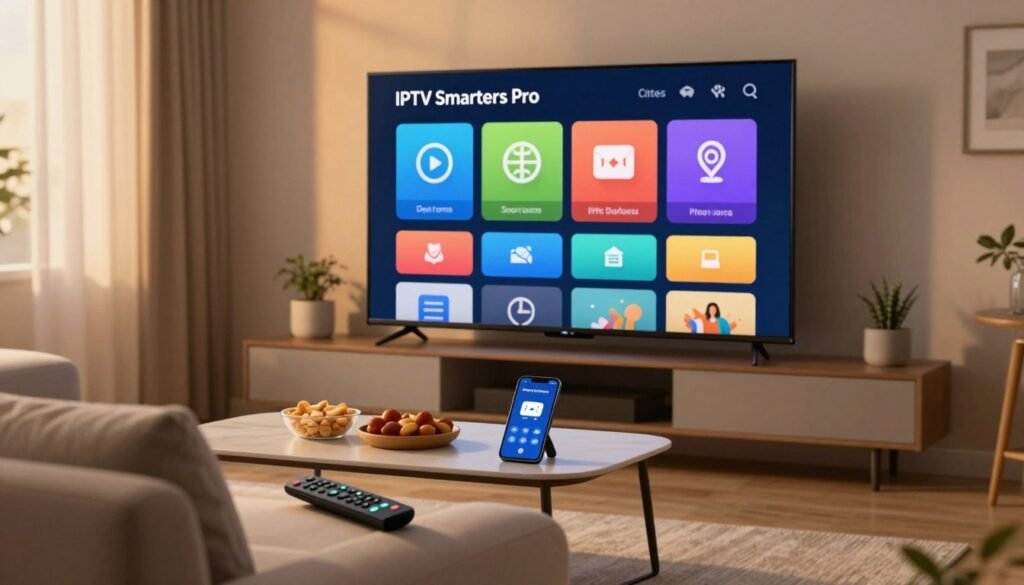
Before you sideload any app, it’s good to know what it does. IPTV Smarters Pro connects to streams from third-party providers. It doesn’t host or distribute content itself.
Understanding the app’s role
The app works like VLC or Kodi, opening M3U playlists and Xtream Codes API links. It stays neutral. The safety of IPTV Smarters Pro depends on the APK’s malware status and the provider’s legal rights.
Why it isn’t listed in official stores
IPTV Smarters Pro isn’t in the Amazon Appstore or Google Play. It was removed from Google Play in 2019. This means users must sideload the APK, raising safety concerns.
How to assess APK safety VirusTotal and other checks
Scanning the APK with VirusTotal is a basic step. VirusTotal scans show vendor detections and flagged files. A recent scan of IPTV Smarters Pro APK (version 3.1.5.1) found no malware.
Look for consistent results from multiple scanners. Check file hashes against reputable sources. Also, read recent community reports. This helps determine if IPTV Smarters Pro is safe for your device.
Legal factors and choosing a provider
The app’s technology is legal. But, whether IPTV Smarters Pro is legal depends on the content streamed. Streaming from unlicensed providers can risk legal trouble. Choose providers with clear licensing, good uptime, and reliable support.
Many users use a VPN like ExpressVPN or Surfshark for privacy. A VPN encrypts traffic and reduces exposure to ISP monitoring or device tracking when using unverified services.
Preparing Your Firestick for Sideloading
Before you sideload IPTV Smarters Pro, get your Firestick ready. A few quick settings and one recommended app make the process smooth. Follow the steps below and grant the right permissions so downloads and installs run without interruption.
Enabling Developer Options and Apps from Unknown Sources (Fire OS 7+ and older)
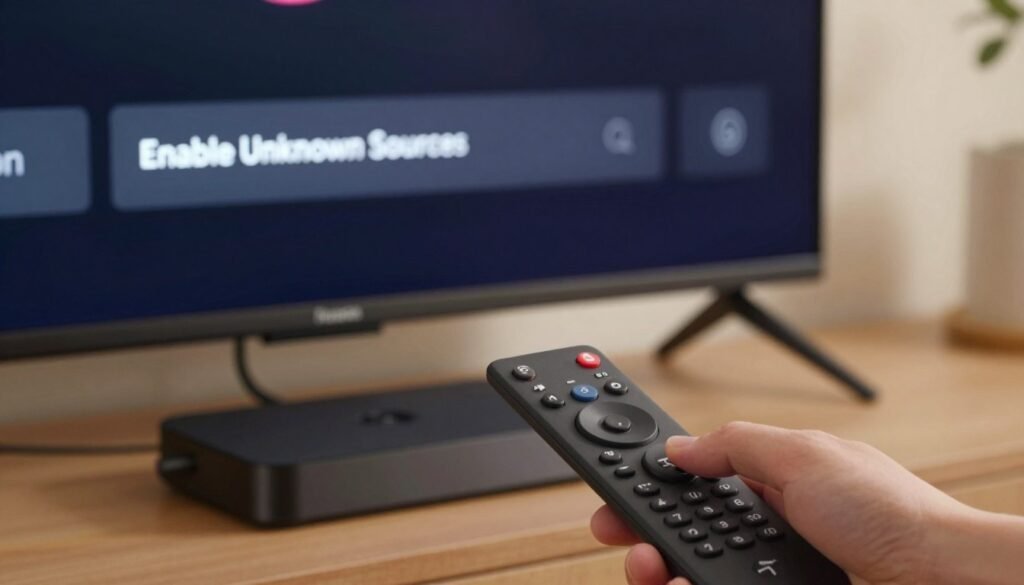
By default, Fire TV blocks unapproved apps. To enable sideloading, open Settings > My Fire TV > Developer options. On Fire OS 7 and newer, flip the Install Unknown Apps toggle and enable it specifically for the Downloader app.
On Fire OS 6 and older, turn on Apps from Unknown Sources. That single switch allows the system to accept APK installs from sideload tools.
Installing the Downloader app from the Amazon Appstore
Use the Home search icon and type “Downloader” to find the app in the Amazon Appstore. Downloader is the easiest way to fetch APKs by URL. Install it, then run it once to grant storage and network permissions when prompted.
Granting permissions on first run is essential. If Downloader lacks rights, downloads may fail or save incorrectly.
Troubleshooting missing Developer Options and how to enable them
Sometimes Developer Options are hidden. To reveal them, go to Settings > My Fire TV > About and press the device model seven times. A short message appears when Developer Options unlocks.
If downloads stall, clear the Downloader cache from Settings > Applications > Manage Installed Applications > Downloader > Clear cache. That fixes many common issues when you try to sideload IPTV Smarters Pro.
| Task | Fire OS 7+ | Fire OS 6 and older |
|---|---|---|
| Reveal Developer Options | Settings > My Fire TV > About > press model 7 times | Same method applies across versions |
| Allow APK installs | Settings > My Fire TV > Developer options > Install Unknown Apps > enable for Downloader | Settings > My Fire TV > Developer options > turn on Apps from Unknown Sources |
| Recommended sideload tool | Downloader app Firestick — install from Amazon Appstore | Downloader app Firestick — install from Amazon Appstore |
| Fix download problems | Open Downloader > Allow permissions > Clear cache if needed | Same steps: allow permissions and clear cache |
| Privacy tip | Use a VPN when you sideload to reduce tracking | Use a VPN when you sideload to reduce tracking |
How to Sideload IPTV Smarters Pro APK to Firestick
Before you start, make sure Developer Options are on and Apps from Unknown Sources is enabled. Also, keep your Firestick connected to a stable network. This helps avoid risks when installing the app.
Using Downloader safely: Open Downloader and go to Home. Type a verified link in the URL box. You can find a trusted link at firesticktricks.com/smarter.
Another safe option is https://www.iptvsmarters.com/smarters.apk. Always check the link on the vendor’s website before downloading. You can also use a Downloader code like 730116 to find the IPTV & Media Player category.
Step-by-step installation flow: After entering the URL or code, wait for the APK to download. Downloader will ask to install it. Click Install and follow the prompts: allow permissions, confirm Install again, and wait for the “App installed” message.
Grant permissions on first run so the app can work properly. If the download stalls, clear Downloader cache and try again.
Verify and clean up: After installation, choose Done on the installer screen. Downloader will ask if you want to delete the APK. Confirm Delete twice to save space. Open the app and sign in with your provider’s credentials to check if it’s working.
- Tip: If the app fails to launch, reboot the Firestick and try again.
- Tip: Keep the Downloader APK Firestick app up to date for smoother downloads.
- Tip: To conserve space, delete older APKs after every install and monitor free storage regularly.
IPTV Smarters Pro
IPTV Smarters Pro is a player and app for managing IPTV subscriptions. It lets you combine multiple subscriptions into one place. It also supports EPG import, has a clear guide, and keeps live TV, movies, and catch-up in separate tabs.
What it does and core features
The app has a built-in player, user profiles, and parental controls. It also has favorites and basic recording. Users like its simple design and quick channel switching.
Key features include multiscreen viewing, a multilingual UI, EPG support, and managing several accounts from one place.
Free versus paid capabilities
The free version meets most daily needs like channel lists and EPG. But, some advanced tools might need a paid version. For more features, users might choose paid alternatives like TiviMate.
Supported input methods
IPTV Smarters Pro accepts M3U imports and Xtream Codes API logins. Use M3U for playlist files or long URLs. Choose M3U Xtream Codes for account-based access with EPG linking.
External player support and Firestick recommendations
The app works with popular external players for better playback on Firestick. Recommended players include VLC, MX Player, and Wuffy Player. Using these players can reduce buffering and improve playback.
| Feature | Free Version | Paid / Provider Enabled |
|---|---|---|
| Built-in player | Yes | Enhanced codecs and settings |
| Multiple accounts | Yes | Smarter account management and multiscreen |
| EPG support | Yes, if provider supplies guide | Improved mapping and longer guide range |
| Live recording | Limited | Extended recording options when allowed |
| External players | Supported | Full integration with recommended players |
| Login methods | M3U and Xtream Codes API | M3U and Xtream Codes API with provider extras |
How to Add Your IPTV Service to IPTV Smarters Pro
Adding your IPTV service to IPTV Smarters Pro is easy once you know the steps. Start by choosing a clear playlist name. Then, pick the right input method for the best results. Here’s a step-by-step guide for M3U entry, Xtream Codes API, managing multiple accounts, and enhancing your program guide.
Loading an M3U Playlist or File/URL
First, select Load Your Playlist or File/URL and allow any permission prompts. Set Playlist Type to M3U URL. Enter a Playlist Name and paste the M3U File/URL into the field. Then, tap Add User.
Long M3U URLs can be hard to enter with a Firestick remote. Use the Fire TV mobile remote app for easier typing when adding M3U IPTV Smarters Pro playlists.
Logging in with Xtream Codes API
If your provider supports it, use the Xtream Codes API option. Enter the server URL, username, and password. API credentials are usually shorter and simpler than long M3U links.
Many users prefer Xtream Codes Smarters because the API often yields smoother EPG mapping and faster channel loads.
Managing multiple subscriptions and switching users
Smarters supports more than one profile. Open Switch User and choose Add User to create additional accounts. This makes it simple to keep family or backup subscriptions separate.
For households with many packages, multiple subscriptions Smarters lets you switch between services without re-entering credentials.
Adding EPG and improving channel guide accuracy
Most providers supply an EPG URL. Add this link in the user settings or when creating the playlist. Proper EPG reduces mismatched channels and improves program titles.
If channels still misalign, check the EPG mapping option. Confirm the provider-supplied EPG matches your playlist.
| Task | Where to Enter | Tip |
|---|---|---|
| Load M3U playlist | Load Your Playlist or File/URL > Playlist Type = M3U URL | Use Fire TV mobile remote app for long URLs |
| Use Xtream Codes API | API login fields: Server URL, Username, Password | Xtream Codes Smarters often improves EPG and speed |
| Manage multiple accounts | Switch User > Add User | multiple subscriptions Smarters keeps services organized |
| Add EPG | User settings or playlist setup > EPG URL | add EPG iptv smarters pro to fix guide mismatches |
Using IPTV Smarters Pro on Firestick: Tips and Best Practices
Get the most from IPTV Smarters Pro with a few simple habits. These habits save time and cut buffering. Small setup steps make daily use smoother for every family member.
Creating a home screen shortcut and organizing favorites
Create a home screen shortcut for easy access after agreeing to Terms of Use. Long-press the Fire TV select button on any channel to add it to your favorites. Use folders or quick lists to group sports, news, and kids’ channels.
These favorites Firestick Smarters tricks speed navigation and keep live viewing organized.
Configuring parental controls, language, and profiles
Open Settings > General Settings to set language and add profiles. Profiles let each family member keep watch lists, subtitles, and audio preferences separate. Turn on parental controls under Settings to restrict mature channels.
Profiles plus controls protect kids and keep personalized guides tidy.
Recording live TV and storage options
Use the Recordings section to capture live shows for later. Recording performance depends on your Firestick model and available storage. External USB drives or a NAS deliver more space and faster writes than internal flash on older Fire TV Sticks.
Plan storage by testing short recordings first. If recordings fail or stutter, move saved files to external storage and retry. These steps help reliably record live TV Smarters sessions.
Switching between internal and external players for performance
Switch to an external player when the built-in player lags. Popular choices include VLC and MX Player; Wuffy and BSPlayer work well on many setups. Add players under Settings > External Players > Add Player, then choose your preferred player per content type.
External player iptv smarters pro integration often reduces buffering and improves codec support.
| Tip | Where to Find It | Benefit |
|---|---|---|
| Home screen shortcut | App options > Add to Home | One-tap access to the app and favorite lists |
| Favorites management | Channel long-press > Add to Favorites | Quick navigation to frequently watched channels |
| Profiles and language | Settings > General Settings | Personalized guides and preferred audio/subtitles |
| Parental controls | Settings > Parental Controls | Block mature content and limit viewing times |
| Recording live shows | Recordings section in app | Save broadcasts for later viewing; depends on storage |
| External player setup | Settings > External Players > Add Player | Better playback, fewer codec issues, reduced buffering |
Optimizing Firestick Performance for Smooth Streaming
Make streaming better with a few easy steps. Start by cleaning up your Firestick. Then, adjust network and app settings for the best results.
Clearing cache and freeing storage
Clear the cache for IPTV Smarters Pro regularly. Go to Settings > Applications > Manage Installed Applications > IPTV Smarters Pro > Clear cache. This frees up space and reduces CPU work.
Close apps you don’t use. This leaves more memory for streaming. It also helps avoid stutter when changing channels or loading guides.
Wired vs wireless connections for stability
Use an Ethernet adapter Firestick for high-bitrate or 4K streams. A wired connection cuts down on packet loss and jitter. This helps avoid buffering on busy networks.
Make sure your internet plan can handle the stream’s bitrate. If problems continue, try different router bands or move the Fire TV closer to the router.
In-app and player settings to reduce buffering
Try fixing buffering inside the app. Switch to an external player like VLC or MX Player if you can. Change the buffer size or codec settings if the external player supports it.
Lower the stream quality if bandwidth is low. If buffering still happens, try a different VPN server or disable VPN briefly. Keep the app updated and clear the cache after big updates to avoid issues.
Why Use a VPN with IPTV Smarters Pro on Firestick
Using a VPN before opening IPTV Smarters Pro protects your privacy and keeps streaming smooth. ISPs and networks might log or slow down your traffic. A good VPN hides your IP and prevents slowdowns during busy times.
Privacy and security
A VPN for IPTV Smarters Pro encrypts your traffic with AES-256 encryption. This stops casual monitoring on public Wi-Fi and hides your streaming from your ISP. Choose a provider with a strict no-logs policy and a kill switch to block leaks if the connection drops.
What to look for in 2026
Look for a VPN that’s fast and has a native Firestick app. The best VPN in 2026 will have quick servers, many server locations, and low latency for live channels. A native app makes setup easy and keeps performance high on Fire OS.
Top choices and value
ExpressVPN is often praised for its speed and ease of use. Reviewers say it’s easy to install on Firestick. Surfshark Firestick is known for its value and unlimited device connections. Both offer kill switches and large server networks.
Quick ExpressVPN installation steps
Subscribe to ExpressVPN, open Find on your Firestick, search for ExpressVPN, download the app, sign in, and tap the power button to connect. Connect before launching IPTV Smarters Pro to keep your traffic safe.
Quick Surfshark setup
Install Surfshark from the Amazon Appstore, sign in, choose a recommended server, and connect. Guides suggest picking a fast, nearby server for low latency. Open IPTV Smarters Pro only after the VPN shows an active connection.
Final tips
Test streaming with and without the VPN to compare speeds. Use wired Ethernet for 4K streams when possible. Keep your VPN and IPTV app updated to avoid buffering and compatibility issues.
Troubleshooting Common IPTV Smarters Pro Issues on Firestick
If iptv smarters pro not working on your Firestick, start with simple checks. Network hiccups and full storage are common problems. Run a quick speed test, confirm your VPN is on a fast server, and make sure the Fire TV has at least 200–300 MB free for the app to run smoothly.
Clear the app cache when playback stalls or the app becomes unresponsive. Open Settings > Applications > Manage Installed Applications > IPTV Smarters Pro, then choose ‘Clear cache.’ Removing leftover APK files after installation frees space and often prevents repeated crashes.
If streams buffer, follow a short checklist to fix buffering Smarters: check router placement, switch to an Ethernet adapter, test without VPN, and change the internal player to VLC, EXO, MX Player, or Wuffy inside the app. External players often reduce CPU load and smooth out buffering on 720p or 1080p channels.
When channels fail to load, verify your M3U link or Xtream credentials. Contact your IPTV provider to confirm server status and account limits. Many providers list support channels through Telegram, Discord, or email; have your login details ready when you reach out.
App crashes that persist after clearing cache usually mean a faulty APK or an outdated build. To update Smarters APK, download the latest release from the developer or an official distributor, check the APK with VirusTotal if you have security concerns, then install the new version.
Reinstall IPTV Smarters Pro if problems continue. Uninstall the app, remove the APK file from Firestick storage, reboot the device, then sideload the fresh APK. This sequence fixes corrupted installs, resets permissions, and often restores normal function.
Use this compact troubleshooting table to pick the right step fast:
| Problem | Quick Fix | When to Contact Provider |
|---|---|---|
| App won’t open | Clear cache, reboot Firestick, reinstall IPTV Smarters Pro | If reinstall fails or account shows inactive |
| Frequent buffering | Run speed test, switch to Ethernet, change player to VLC/EXO/MX/Wuffy to fix buffering Smarters | If speeds are fine but streams still lag |
| Channels not loading | Verify M3U/Xtream credentials and reload playlist | If provider servers report issues or credentials rejected |
| App crashes during playback | Remove old APK, update Smarters APK, scan APK for malware, reinstall | If crashes persist after fresh install |
| Low storage errors | Delete unused apps, remove APK files, clear caches | If storage still won’t free after cleanup |
Keep an eye on updates and provider notices. Periodic maintenance—clearing cache, closing background apps, and choosing the right player—prevents most recurring problems. When you document each step, support teams from IPTV services can diagnose issues faster and get you back to viewing without long delays.
Conclusion
Installing IPTV Smarters Pro on Firestick is a smart move for 2026. It lets you watch live TV and on-demand content easily. This free app works with Fire TV devices, making it a great choice for those tired of cable.
To ensure a smooth experience, choose a reliable IPTV provider. Always scan APKs before installing and use a VPN like ExpressVPN or Surfshark. Keeping your device clean and updated helps avoid buffering and app crashes.
IPTV Smarters Pro offers many useful features. You can use external players, record shows, set parental controls, and manage playlists. With the right setup and a trusted provider, Firestick IPTV 2026 is a great cable alternative in the United States.