Could one app turn your Amazon Fire TV Stick into the smartest IPTV box in your living room?
Installing TiviMate on FireStick gives you a polished IPTV player. It handles live channels, VOD, and a rich Electronic Program Guide. This FireStick IPTV guide will help U.S. users install TiviMate in 2026.
It provides clear, safe steps for Downloader-based sideloading. You’ll also learn how to set up playlists (M3U and Xtream Codes API), configure EPG, and tune playback.
TiviMate on FireStick is designed for TV screens and remote control. It supports multiple playlists and catch-up features if your IPTV provider offers them. You can even record shows with external storage. This section introduces TiviMate and why it’s a great choice for IPTV on FireStick.
Key Takeaways
- TiviMate on FireStick turns a Fire TV Stick into a full-featured IPTV client.
- The guide focuses on safe TiviMate installation 2026 using the Downloader app.
- TiviMate supports M3U playlists, Xtream Codes API, EPG, and external recording.
- The app is optimized for remote navigation and TV-sized screens.
- This FireStick IPTV guide is tailored for U.S. users at all skill levels.
Why Choose TiviMate on FireStick for IPTV in 2026
The FireStick is a top choice for streaming live TV in the U.S. Choosing the right app is key for a smooth experience. TiviMate shines on Amazon Fire OS with its TV-focused design.
Overview of core capabilities
TiviMate offers a polished channel guide and supports multiple playlists. It also has a strong EPG presentation. The interface makes it easy to access favorites and channel groups.
It also supports scheduled recording and multi-device access through the Companion app. Using external players like VLC and MX Player can reduce buffering and improve compatibility.
Benefits of running this app on FireStick hardware
Using TiviMate on FireStick starts with a remote-friendly layout. It works well on Fire TV Stick models, including 4K and 4K Max. These models can handle HD and 4K streams.
FireStick’s low resource footprint pairs well with TiviMate’s efficiency. This offers smooth navigation without the bulk of full set-top boxes. Adding external storage or an Ethernet adapter can boost recording and stream stability.
Comparing popular IPTV players
TiviMate vs IPTV Smarters Pro often focuses on interface. IPTV Smarters Pro is easy to set up but lacks the TV-centric polish and advanced EPG that many prefer.
TiviMate vs Perfect Player shows different strengths. Perfect Player is lightweight and stable but lacks the features for heavy TV users. TiviMate offers scheduled recording, richer EPG, and deeper playlist management for enthusiasts.
| Feature | TiviMate | IPTV Smarters Pro | Perfect Player |
|---|---|---|---|
| TV-oriented UI | Yes | Partial | Minimal |
| Advanced EPG | Best-in-class | Basic | Basic |
| Scheduled recording | Available (Premium) | No | No |
| External player support | Yes (VLC, MX) | Built-in | Limited |
| Multi-playlist handling | Strong | Good | Basic |
For many FireStick owners, TiviMate is the best IPTV player. It balances advanced features with a clean TV-friendly design. Its focus on guide quality, recording, and playlist control makes it a top pick for users who want more than basic playback.
What You Need Before Installing TiviMate
Before you install TiviMate on FireStick, make sure you have a few things ready. This includes checking your hardware, network, and system settings. This will help your setup go smoothly.
Compatible FireStick models and system requirements
Make sure your FireStick model is supported for the best experience. Models like Fire TV Stick (3rd gen), Fire TV Stick 4K, and Fire TV Stick 4K Max are compatible. Also, newer Fire TV devices with recent Fire OS builds work well.
For Ultra HD channels, you’ll need a 4K model. This ensures you get the best picture quality. Also, keep some free storage for the app, cache, and guide data.
Essential prerequisites: internet, IPTV subscription, Downloader app
First, ensure you have a stable internet connection. Aim for at least 25 Mbps for HD or 4K streaming. Also, check your IPTV subscription requirements before adding playlists.
Your provider must offer M3U URLs or Xtream Codes API credentials. This is necessary for TiviMate to work.
Install the downloader app FireStick users rely on. Downloader by AFTVnews from the Amazon Appstore is the standard tool. It helps fetch the TiviMate APK and other utilities.
Importance of updating Fire OS and enabling ADB Debugging/Unknown Sources
Keep Fire OS up to date. This ensures compatibility and reduces issues. Update your firmware under Settings > My Fire TV before installing third-party apps.
Enable Apps from Unknown Sources and ADB Debugging in My Fire TV > Developer Options. These settings are crucial. They allow the downloader app FireStick to install APKs and sideload third-party Android apps like TiviMate.
| Item | Recommended Minimum | Why it Matters |
|---|---|---|
| Device | Fire TV Stick 4K or 4K Max | Stronger CPU/GPU improves 4K playback and UI responsiveness |
| Internet | 25 Mbps+ | Reduces buffering for HD and Ultra HD streams |
| Storage | At least 2–3 GB free | Holds app, EPG data, and temporary cache |
| IPTV Access | Valid M3U URL or Xtream Codes API | Needed to load channels and guide into the app |
| App for Sideloading | Downloader by AFTVnews | Fetches the TiviMate APK securely from a trusted URL |
| System Settings | Latest Fire OS; Unknown Sources enabled; ADB Debugging on | Meets Fire OS requirements and permits sideloading |
Preparing Your FireStick: Settings and Security
Before you start installing apps, set up your Fire TV. A few quick steps now can save you trouble later. This guide will show you how to toggle settings, a privacy tip, and how to clean up your FireStick. These steps will help make your FireStick work better.
How to enable Apps from Unknown Sources and ADB Debugging
Open Settings on your Fire TV. Then, go to My Fire TV and Developer Options. Turn on Apps from Unknown Sources to sideload apps with Downloader. Also, enable ADB Debugging for troubleshooting. These two changes are all you need for most installations.
Recommended security steps: VPN usage before installation
Use a trusted VPN like ExpressVPN or NordVPN to encrypt your traffic. This reduces ISP throttling. Install the VPN app from the Amazon Appstore or set it up on your router for whole-home coverage. Connect the VPN before using IPTV apps to keep your streams private and secure.
Clearing space and optimizing FireStick for best performance
Free up space by uninstalling apps you don’t use. Go to Settings > Applications > Manage Installed Applications to clear caches. Reboot your device after cleaning up to refresh its memory. These steps will improve your FireStick’s performance and reduce buffering.
Think about using a USB OTG adapter and external storage for recording shows with TiviMate. A USB-to-Ethernet adapter can give you a more stable connection than Wi-Fi for high-bitrate streams. These hardware and software tweaks will make installing and running apps smoother and more secure.
| Task | Where to Find It | Why It Helps |
|---|---|---|
| Enable Apps from Unknown Sources | Settings > My Fire TV > Developer Options | Allows sideloading via Downloader for apps not on the Amazon Appstore |
| Turn on ADB Debugging | Settings > My Fire TV > Developer Options | Enables ADB access for troubleshooting and advanced tools |
| Install a VPN for FireStick | Amazon Appstore or router setup | Encrypts traffic, avoids ISP throttling, and enhances privacy |
| Clear app cache and uninstall unused apps | Settings > Applications > Manage Installed Applications | Frees storage and improves responsiveness |
| Add external storage / USB-to-Ethernet | USB OTG adapter; Ethernet adapter via USB | Supports recordings, reduces buffering, and boosts overall speed |
Installing the Downloader App on FireStick
Before you add third-party apps like TiviMate, you need a reliable way to fetch APKs. The Downloader app makes direct downloads simple on FireStick. Follow the quick steps below to install Downloader and learn other sideloading options if you run into limits with the Amazon Appstore.
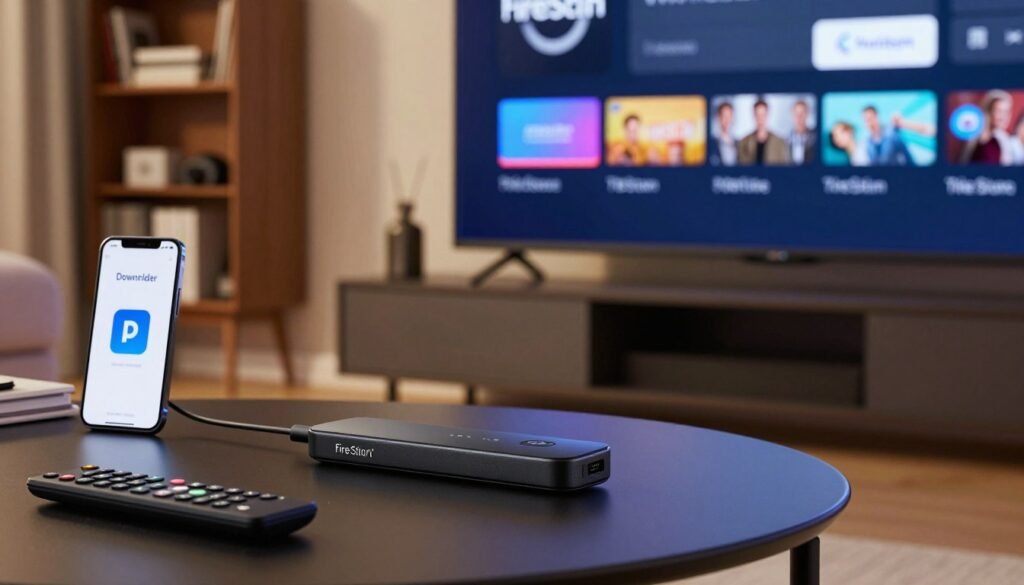
Finding and installing Downloader from the Amazon Appstore
From the FireStick Home screen, select Search and type “Downloader.” Look for the Downloader app published by AFTVnews and choose Install. Once installed, open Downloader to grant permissions and allow entering download URLs for APKs such as tivimate on firestick downloader. If your Fire OS is current and your Amazon account matches the device region, the Downloader app Amazon Appstore entry should appear without issues.
Alternative sideloading tools and when to use them
Downloader covers most needs, but sometimes you need other approaches. Use adbLink when you want direct ADB installs from a PC or when Downloader cannot reach a specific URL. ES File Explorer can transfer files if it’s available in your Appstore region.
Transferring via USB or OTG is useful when you prefer physical file moves. These sideloading tools FireStick choices give flexibility when the app store blocks a download or when you manage multiple devices from a computer.
Troubleshooting Downloader installation problems
If Downloader does not appear in search, confirm your Amazon account’s Appstore region and check Fire OS updates. You can sideload a mirror APK by downloading it on another device then transferring it with adbLink or OTG. Clear the app cache or reinstall if Downloader crashes. Verify network connectivity and restart the FireStick when installs fail.
Keep your Fire OS updated and use a secure connection when handling APKs. These steps help you confidently install Downloader and move on to installing tivimate on firestick downloader files with minimal friction.
How to Download and Install TiviMate APK on FireStick
Before starting, make sure your FireStick can sideload apps and your internet is stable. This guide will show you how to use Downloader to get the app from a trusted source. You’ll learn how to install the APK and check it for safety.
Using Downloader to access the official TiviMate download URL
Open Downloader on your FireStick. In the address field, type the official TiviMate download URL: https://tivimate.com/download and press Go. This method ensures you get a safe APK from TiviMate’s site, making the process easier.
Step-by-step APK download and install process
- Type the tivimate on firestick apk page address into Downloader and start the request.
- Wait for the APK to download completely; speed depends on your connection.
- When the installer prompt appears, select Install and allow any required permissions.
- After installation finishes, click Open to launch TiviMate and follow the on-screen setup prompts.
Verifying a safe APK source and avoiding malicious files
Always use the official TiviMate website or links from the developer’s pages when downloading. Stay away from random third-party sites or shortened links unless you can confirm them. Check the file size against the developer’s stated size and verify the app signature before installing.
If you transfer files via a PC, keep your antivirus software updated. Scan the APK before installing. These precautions help protect your FireStick and ensure the tivimate on firestick apk works correctly.
Initial Setup and Configuring TiviMate on FireStick
First, open TiviMate and read the terms. Tap to accept and give any needed permissions for storage and network. This lets you download playlists and schedule recordings.
Launching the app
Start TiviMate and follow the instructions. You might need to let the app access files and the network. This is necessary for caching streams, saving recordings, and getting channel data.
Adding playlists
To add channels, use a single M3U link or Xtream Codes API credentials. For M3U, go to Settings > Playlists and enter the URL from your provider. M3U is easy and works with most services.
For better integration, use Xtream Codes API TiviMate. Enter the server URL, username, and password from your provider. Xtream Codes API TiviMate offers better channel grouping and automatic EPG mapping.
EPG guide setup
Setting up TiviMate EPG is key for a good TV guide. Add the EPG URL from your IPTV service in Settings > EPG. If you used Xtream Codes, it might map automatically. Make sure EPG channel IDs match your playlist to avoid errors.
If the provider EPG is not complete, use a third-party EPG that matches your lineup. Test the guide for a few channels and adjust the EPG URL or mapping until it shows the right program data.
| Task | Action | Best For |
|---|---|---|
| Initial launch | Open app, accept terms, grant storage/network permissions | All users setting up TiviMate setup FireStick |
| Add M3U playlist | Settings > Playlists > Add > Paste M3U URL | Users with single playlist links who want a simple add M3U to TiviMate method |
| Use Xtream Codes | Settings > Playlists > Add > Xtream Codes API (server, user, pass) | Providers offering accounts; preferred for Xtream Codes API TiviMate mapping |
| EPG setup | Settings > EPG > Add EPG URL or map via Xtream Codes | Anyone needing accurate program guide; part of TiviMate EPG configuration |
| Troubleshoot guide | Verify credentials, check EPG channel IDs, test alternate EPG sources | Users fixing mismatched or missing guide entries during tivimate on firestick setup |
Customizing TiviMate Settings and Improving Playback
Adjusting TiviMate settings can make your IPTV experience better. Making small tweaks in playback and playlist management can reduce buffering. This makes channel access faster and long lists easier to navigate. Here are some tips to improve your streaming and guide.
Adjusting playback options
Start by going to Settings > Playback. Here, you can choose your default player and adjust buffering settings. If your Fire TV supports it, turn on hardware decoding to reduce CPU usage.
For networks that are not stable, increase the buffer size TiviMate uses. Bigger buffers help avoid pauses but use more memory. So, start with small increases and test.
Decide between the internal player and external apps based on codec needs. Changing the default player can fix audio or subtitle issues without changing streams.
Managing playlists and favorites
In Settings > Playlists, you can edit or remove playlists and rename feeds for better organization. Create channel groups for sports, news, and kids’ shows. Mark favorites for easy access and hide channels you don’t watch to keep the guide clean.
Reorder channels to match your viewing habits. These tools make it easy to manage large M3U or Xtream feeds.
Using external players for compatibility
Install VLC or MX Player from the Amazon Appstore or sideload them when needed. Then, choose your preferred app in Playback settings. External players offer better codec support, handle unusual stream types, and often reduce playback errors.
When switching players, test a few channels. Some streams need different decoder settings. So, try different combinations of player and buffer size TiviMate uses for stable viewing.
Quick tivimate on firestick tips
- Clear cache after heavy usage to free memory and reduce stutters.
- Use Ethernet or a 5 GHz Wi‑Fi band for lower packet loss and fewer buffering events.
- If playback issues persist, temporarily switch to an external player to isolate whether the stream or the app is at fault.
- Keep playlists trimmed. Fewer entries speed up navigation and refresh times.
Getting the Most from TiviMate: Premium, Companion App, and Recording
TiviMate offers a TV-like interface for IPTV on FireStick. The free version supports basic playlist playback and EPG viewing. Upgrading to the paid tier unlocks more features for power users.
What Premium unlocks
TiviMate Premium adds features like unlimited playlist support and scheduled recording. It also includes multi-view, advanced channel management, and premium UI themes. These features turn your FireStick into a DVR-style hub, making it feel like a true TV center.
How to activate
To activate TiviMate Premium, install the TiviMate Companion app on an Android phone. Buy or redeem the Premium license in the Companion app. Then, link the Companion account to your FireStick’s TiviMate instance. This process unlocks the paid features easily.
Recording setup options
FireStick has limited storage. To record TV with TiviMate, attach external storage using an OTG adapter or a USB-C hub for 4K Max models. Format the drive and check free space before setting it as the recording location in TiviMate Settings > Recording.
Best practices
- Use a fast USB 3.0 drive for reliable scheduled recording.
- Set recording quality to balance space and playback needs.
- Organize saved files by date or channel to simplify playback and cleanup.
Troubleshooting tips
If recording fails, ensure the OTG adapter is seated and the drive is mounted. Update Fire OS and TiviMate, then re-link via the TiviMate Companion app if Premium features do not appear. For persistent errors, clear app cache and reboot the FireStick.
Troubleshooting Common Issues with TiviMate on FireStick
First, check your basic settings and power. A quick restart can fix temporary issues. Make sure Apps from Unknown Sources and ADB Debugging are turned on in FireStick settings before you install anything.
Fixes for installation failures and app crashes
If an install fails, update Fire OS and download the APK again from TiviMate’s official site. Clear the app cache or data through Settings > Applications > Manage Installed Applications. After clearing cache, reboot the FireStick.
If TiviMate keeps crashing, try uninstalling and reinstalling it. Use a fresh user profile or remove unused apps that might cause problems.
Solving buffering and stream quality problems
Check your internet speed; it should be at least 25 Mbps for HD or 4K. For better streaming, use Ethernet with a USB-to-Ethernet adapter. If you’re using a VPN, try a nearby server or stream without it to find the issue.
Adjust the buffer size in TiviMate’s playback settings to improve streaming. If problems continue, contact your IPTV provider to check server status and playlist health. These steps usually solve buffering issues with TiviMate.
When to update, clear cache, or reinstall and how to contact support
Keep Fire OS, TiviMate, and external players updated to avoid compatibility issues. Clear the cache on FireStick if playback is choppy or menus lag. Reinstall only if other fixes don’t work.
For app help, use tivimate on firestick support on the official TiviMate website or in the Companion app. For playlist, credentials, or EPG problems, contact your IPTV provider through their support channels like Telegram or their website.
Follow these steps in order: check settings, clear cache, test your network, adjust playback options, and then reinstall if necessary. This approach saves time and quickly finds the problem’s source.
Conclusion
Installing TiviMate on FireStick in 2026 offers a top-notch IPTV experience. It comes with a polished EPG, strong playlist management, and recording options with TiviMate Premium. This guide for 2026 shows how to update Fire OS, enable sideloading, and install Downloader.
It also explains how to use the official APK to add M3U or Xtream Codes playlists safely. This ensures a smooth setup.
For the best results, choose a reputable IPTV provider that supports Xtream Codes API and has reliable uptime. Use a trusted VPN for privacy and smoother streams. Prefer Ethernet or external storage for recordings.
The tivimate on firestick summary highlights the importance of external players, cache management, and occasional updates. These steps keep playback stable.
Final thoughts TiviMate on FireStick: follow the guide sections in order. This prepares, installs, configures, and optimizes the app. Doing so unlocks a superior live TV and VOD experience with flexible features and professional-grade playback on Amazon Fire TV hardware.